JobStart also makes it possible to search the incoming MultiTIFF and PDF documents automatically for barcodes and separate them. In this case an individual document for each recognized barcode is created. For each individual document either a single instance or an instance for all documents can be started and the documents are transferred into a subtable.
Barcodes that do not correspond to the configured Barcode Type or Barcode Filter are ignored and the document is processed as if there were no barcode on this page. If no barcodes are recognized or recognized barcodes do not match the configured Barcode Type or Barcode Filter, the barcode processing returns the entire document and an empty barcode as the result. The sum of the pages before and after barcode processing is the same, unless the Delete Separator Page setting is active. In this case, the sum of the pages after barcode processing is reduced by the number of recognized separator pages.
Additionally it is possible to transfer different information such as e.g. the read barcode or the number of pages of a document to the process.
Please note: The barcode recognition only works with documents of the type TIFF or PDF.
Setting |
Definition |
|---|---|
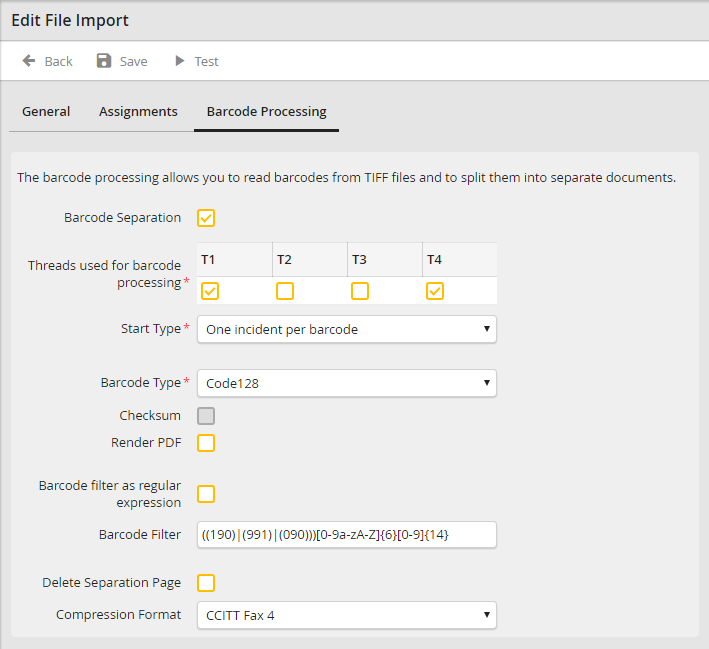
Barcode Separation |
Tick this checkbox to activate the separation of documents by barcode. Please note: To link parts of the document that are separated by barcode in the process, select the type Sub-document (Barcode Processing) in the tab Assignments. |
Start-Type |
Choose here if a single instance should be started, in which all documents can be handed over to a subtable, or if you want to start a single instance for each separated document. |
Barcode Type |
Choose the barcode type that you are using for the document separation from the list. |
Checksum |
Some barcodes can contain checksums to automatically check for a correct recognition. Activate this option in case your barcodes contain checksums |
Barcode Filter as regular expression |
By enabling this checkbox the barcode filter will be interpreted as regular expression. |
Barcode Filter |
You can limit the separation of certain barcodes. To do so enter a filter in this field, such as e.g."123". Use the "*" as wildcard. The separation then only takes barcodes into consideration that meet this criterion. Below you will find some possible constellations. |
Compression Format |
Here you can choose the compression format for the newly created documents. You can choose CCIT Fax 4 (Standard) or LZW. |
Delete Separation Page |
Activate this option if you want to use separation pages that are not needed in the documents. The pages are then deleted automatically. |
Render PDF |
If the barcodes in the PDF document are not pictures but text objects, this option has to be activated. Since the rendering clearly slows the barcode recognition down, it should only be used in the above mentioned case. |
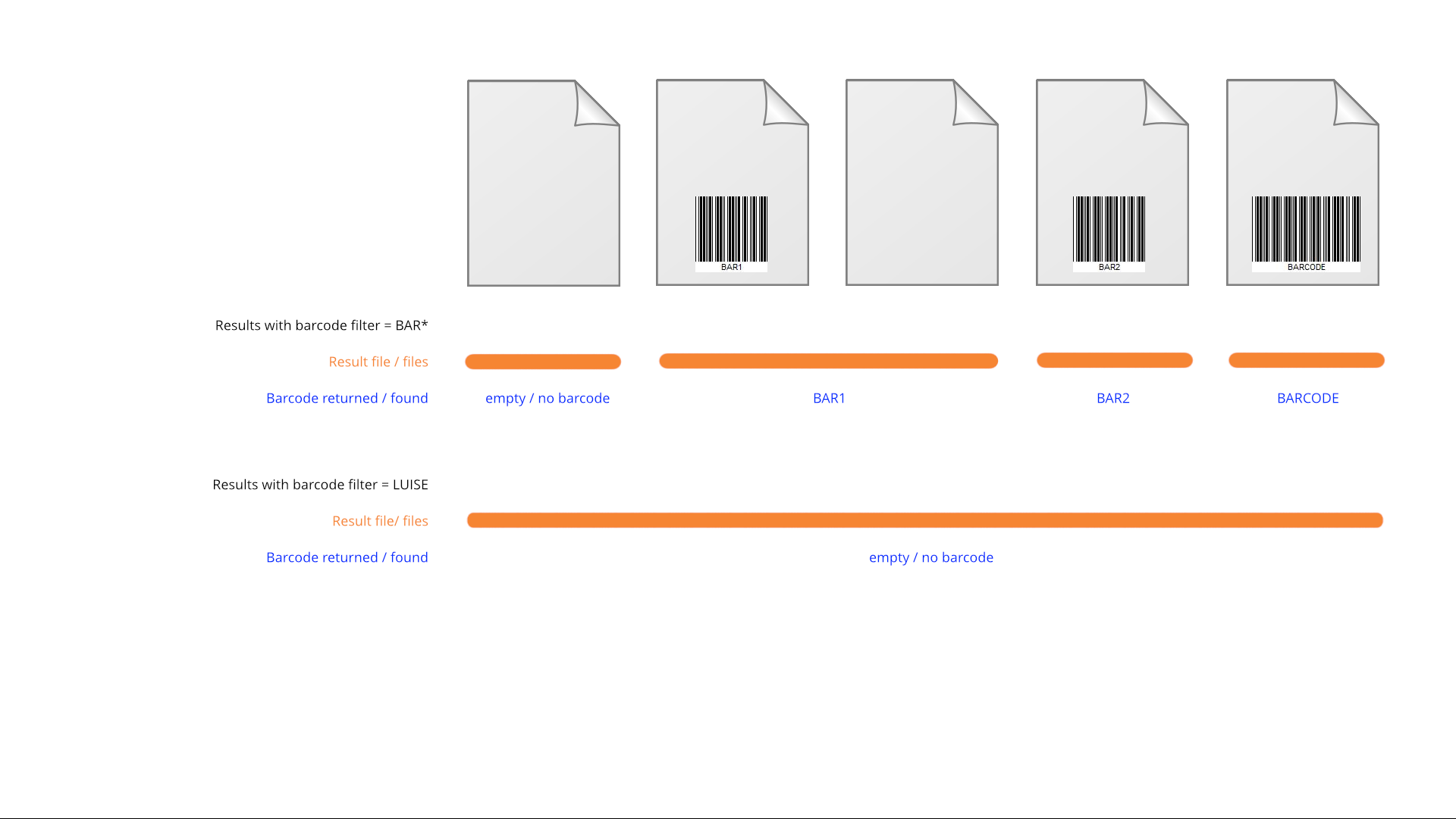
Document splitting examples
