The second tab defines the columns of the new table.
Please note: The maximum number of pages is depending on the database system that is going to be used to create the table. A table created with columns of the type Long text may support less columns than a table with solely columns of the type Decimal number. Additional information can be received from the manufacturer of the respective database system.
Please note: When creating a new table a column with the name jrid is created automatically. It will be enhanced for each data record automatically. This columns serves to identify the data record and it is not possible to delete it, neither when creating a new table nor during the editing of an existing table.
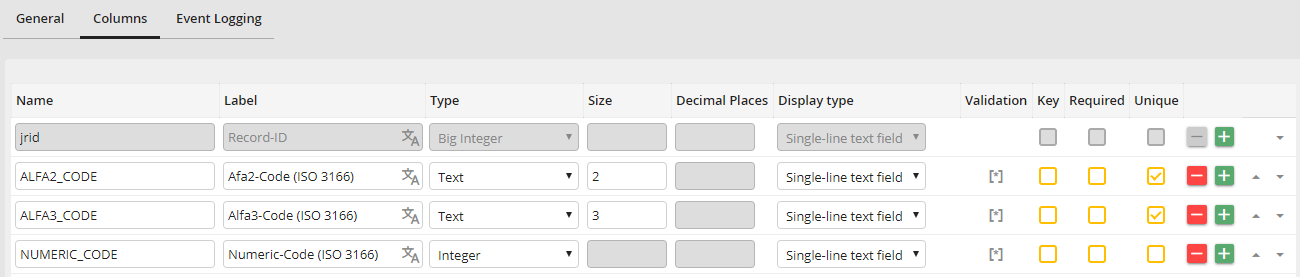
Create a table: Column definition
Properties |
Definition |
|---|---|
Name |
Insert the name of the column in the database table. It is not possible to use the same name for two columns. |
Label |
Insert a column label. You can translate the label into multiple languages (only with the licensed module JobMultilingual). |
Type •Text •Integer •Large integer •Decimal number •Long text •Date (DATETIME) |
You can chose between different data types: •Normal text •Numeric values •Very large numeric values •Decimal numbers •Very large text •Date value in DateTime format |
Size |
Determine how large the inserted data may be in text columns. 50 characters are set as default value. |
Decimal places |
Define here how many decimal places are allowed for a decimal number. 2 decimal places are set as default value. |
Display type •Single-line text field •Multi-line text field •Select box •List •Date •Date / Time |
Define here how the columns should be displayed in the editing dialog of the Manage data overview. For columns with the display type Select box the values 0 and 1 will be displayed when applying the values.
The display type can be changed subsequently after creating the table.
For columns of the type Integer or Large integer the display type multi-line text field is not available.
The options Date and Date / Time are only available for columns of the type Date (DATETIME). They determine, if the time should also be displayed in the date column of the processing interface. |
Validation |
Here you can define your own column validation based on a regular expression. This option is only available for columns with display type Single-line text field and Multi-line text field. |
Key |
Columns defined as Key determine that value-combinations of this column may not be used more than once in the whole table. |
Required field |
Columns defined as Required field must contain a value. |
Explicit |
With the exception of the column type Long text this attribute is available for all column types. It determines that a value may not be used more than once in this column of this table. Unlike the Keycolumns, columns marked as Explicit have to be seen independently of one another. |
Note: Long texts in columns of the type "Long text" and "Text" will be displayed with "..." from 100 characters onward.
Extended settings for the display type List
If for a column List was selected as display type, the pencil symbol is displayed next to the selection box. When clicking on it, a dialog box is opened. Under the tab Options you can add fixed list values, under Database you can select database connections, and store an SQL query. If values are stored in both tabs, the results will be summarized. The results will be provided as in form of a list within the dialog box of the Manage data overview. So you can control, which values are entered in this column via the surface.
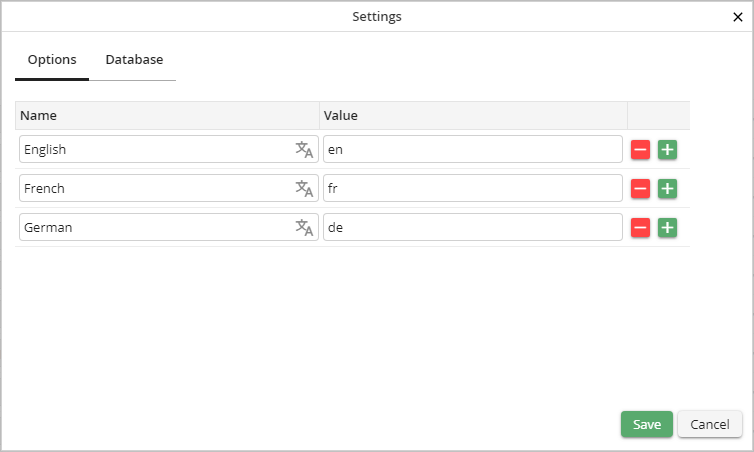
Display type List: Extended settings - Options
Column |
Description |
|---|---|
Name |
The text entered here will be displayed in the list. |
Value |
The text entered here will be used as selection value. |
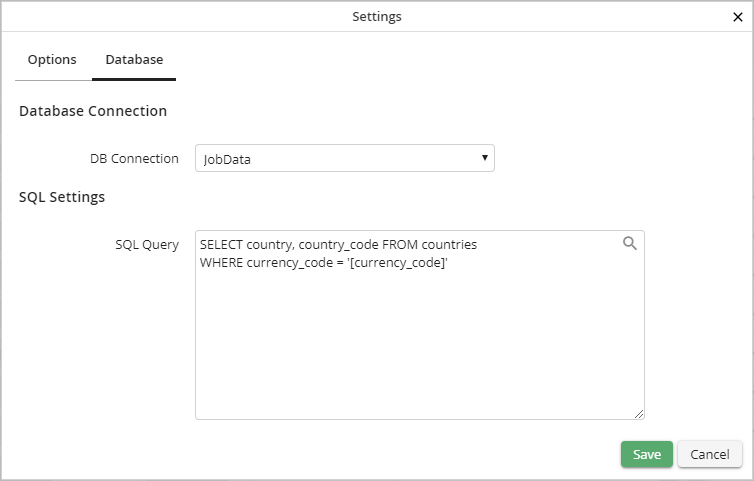
Display type List: Extended settings - Database
Field |
Description |
|---|---|
DB Connection |
Select a database connection here. The JobRouter database and all globally configured databases are available. |
SQL Query |
You can fill the list with the results of an SQL query. The first column of the result will be used as name, the second column as value. If the result contains only one column, it will be used as name and value. |
By clicking on the Magnifier symbol a pop-up window is opened, where you can select your placeholder. Available are: columns, JobRouter variables, and global configurations. When running a database query the placeholders will be replaced by current values. When using columns as placeholders the listing options are updated automatically during the editing of a data record, if column values are changed.
Extended settings for the display types single-line text field and multi-line text field
It one of the above mentioned display types was selected for one column, a symbol is displayed nest to the selection box. By clicking on it, a dialog box is opened. Here it is possible to define a regular expression and a translatable error message. The input in the editing dialog of the Manage data overview is validated via the here defined regular expression. In case of an error, the stored error message is displayed.
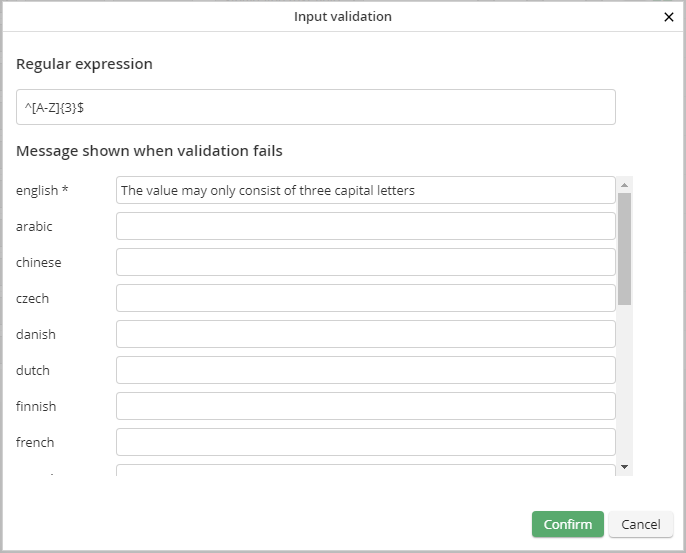
Validation settings
Please note: This regular expression is a Perl Compatible Regular Expression (PCRE). The search is case sensitive. The search is stopped after the first hit. The use of pattern modifiers is not supported.
