To define a new profile click in the overview of all existing profiles on the New button in the action bar. You will see the dialog box shown below.
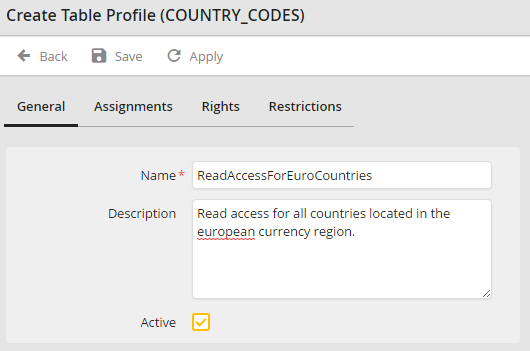
General profile settings
Here you can make the following settings:
Properties |
Definition |
|---|---|
Name |
Insert the name of the requested profile here. |
Description |
Insert a detailed Definition of the profile, if needed. |
Active |
If the checkbox is not marked the rights of this profile will not be applied. |
Assign Job Functions
Via the tab Assignments you can assign any number of Job Functions stored in the JobRouter system to the profile. Then the users with these Job Functions will receive the rights defined here for a JobData table.
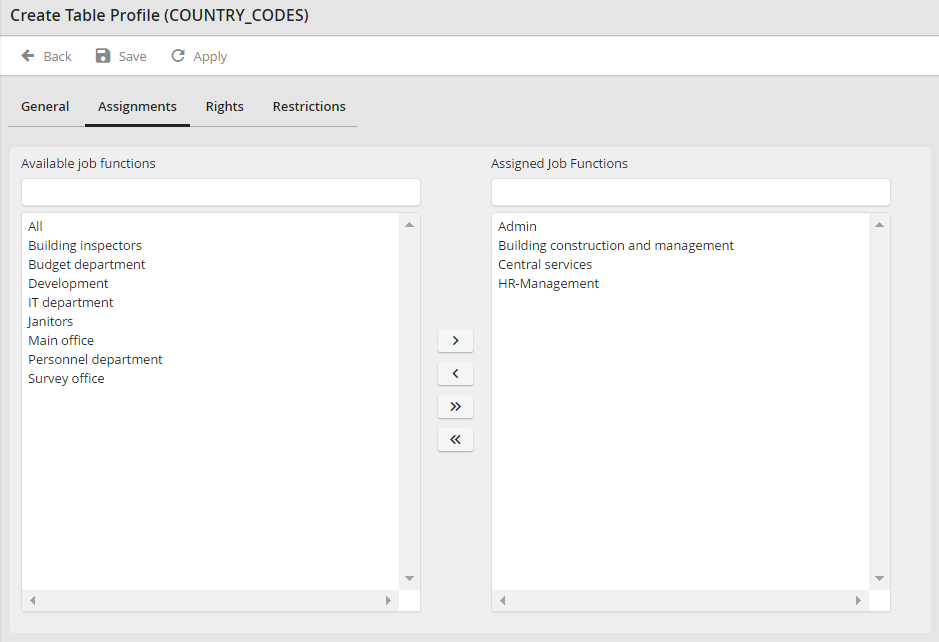
Assign Job Functions
Please note: If the management of rights is configured on profile level an assignment is only possible if the right for User and Job Function assignment is granted additionally.
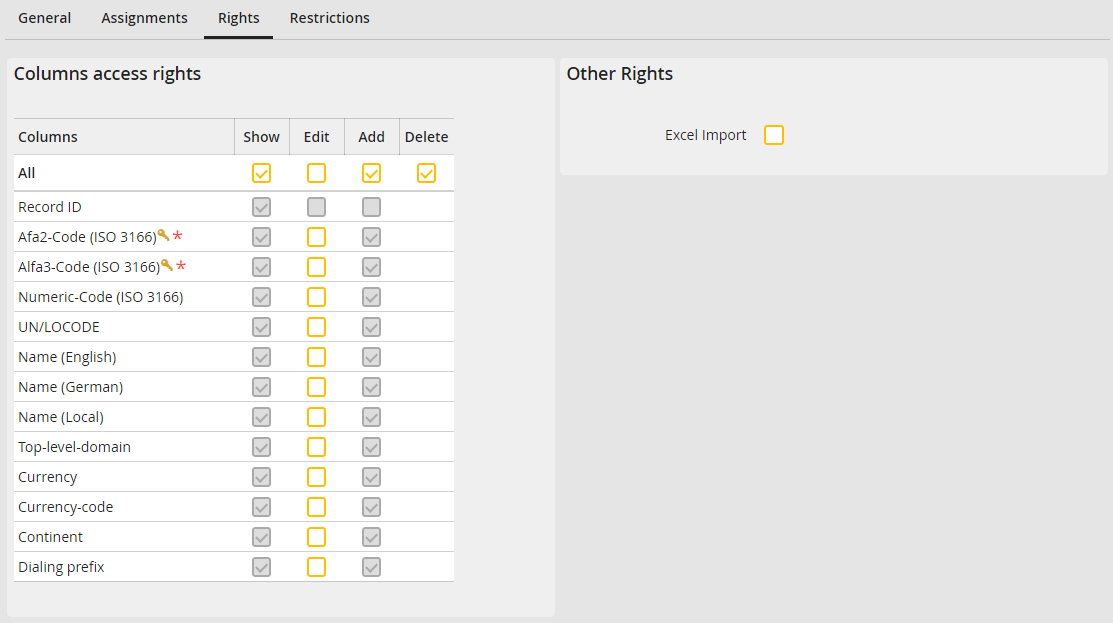
Manage rights
Via the tab Rights you can define the rights of the assigned users. Therefore, the following rights are available:
Right |
Definition |
|---|---|
Display |
Here you can determine if the registered user may see all or only specific columns of the existing data records. The right to see all columns is set by default. |
Edit |
Here you can determine if the registered user may edit values in all or only in specific columns of the existing data records. If all columns are displayed but not available for editing, the fields in the edit dialog of the data record are marked as disabled. |
Add |
Here you can configure if the registered user may enter values in all or only in specific columns of a new data record. If all columns are displayed but not available for creating, the fields in the "new record" dialog of the data record are marked as disabled. |
Delete |
If this right is granted the users with this profile can delete existing data records. |
Excel import |
This setting allows the import of data records from excel files. |
Please note: For the read access to the data of a table at least one active profile is needed, which grants the reading right for at least one column.
Set restrictions
To set restrictions on the displayed data records click on the tab Restrictions.
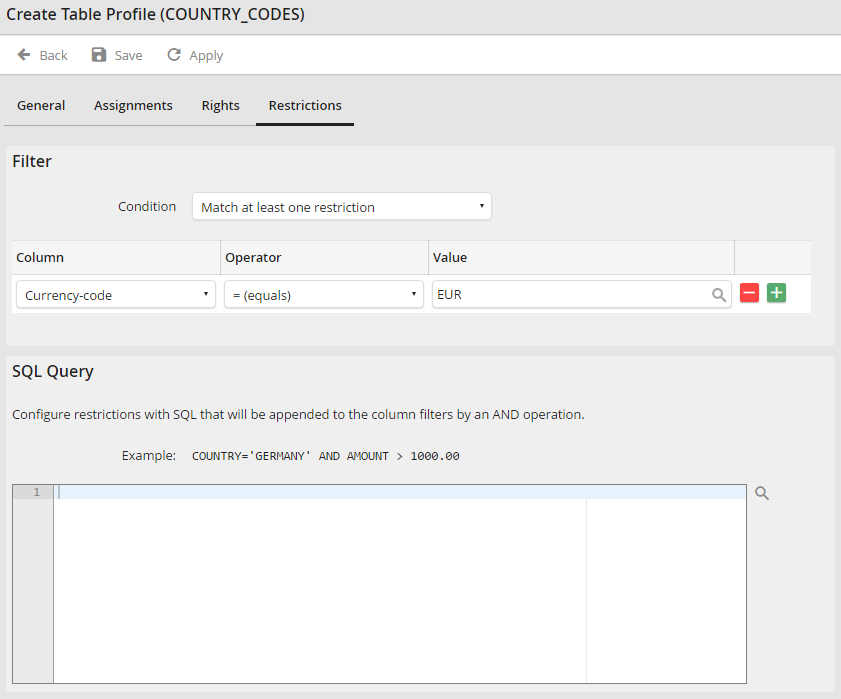
Set restrictions
Select one restriction in the section Filter :
•At least one restriction has to be met.: The columns are linked with OR.
•All restrictions must be met: The columns are linked with AND.
Thereafter, you can define one or multiple restrictions for each column. By clicking on the  button to add a restriction or on the
  button to delete a restriction.
Please note:
The same operator can only be used once per column in the filter. If necessary, use the SQL query.
If a column is deleted it will be automatically removed from the filter.
After adding a column, determine the column name, select an operator, and add a value. Via the magnifier symbol  in the field Value you can select and use variables.
In the section SQL query you can create a WHERE-condition and link it with AND with the defined column filter. Again, it is possible to use the magnifier symbol to add variables. If you didn't configure a column filter, only this condition will be used.
Note:
It is not possible to mask the values in an SQL query so please ensure when using JobRouter variables that no SQL injection occurs.
If columns are deleted these will not be removed automatically from the SQL query.
