Add a new Job Function import task by clicking New in the action bar, or edit an existing Job Function import task by clicking its name. In either case, the Edit Job Function Import Task dialog window will be displayed.
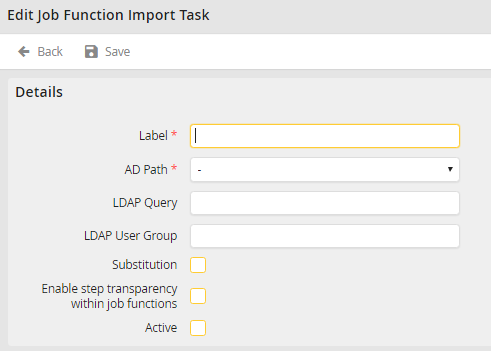
Editing a Job Function Import Task
You may configure the following settings.
Job Function Import |
Definition |
|---|---|
Label |
Assign a name to the LDAP query. |
LDAP Path |
Select a node under which the group is to be found that should be imported into JobRouter as Job Functions. |
LDAP Query |
Type in the corresponding organizational unit and domain under which the LDAP group can be found. |
LDAP Group |
Enter the names of the group to be synchronized as Job Functions. |
Substitute |
•Check the box to activate the substitution function for the Job Function. •The members of the Job Function can thereafter specify substitutes for the Job Function. Please note: The JobSub add-on module is required for this feature. |
Transparency within Job Functions |
Check this box to allow all users in this Job Function to see steps assigned to and completed by other members of their group. |
Active |
Check the box to activate the Job Function Import. |
Click Save to record your entries and be taken back to the Job Function Import overview. The LDAP group along with all its subgroups will be added to JobRouter as Job Functions. As long as synchronization is active, the data will be refreshed at regular intervals.
