You may display images in the result columns of your report (see illustration: Bill book example). Individual values may be assigned a certain image.
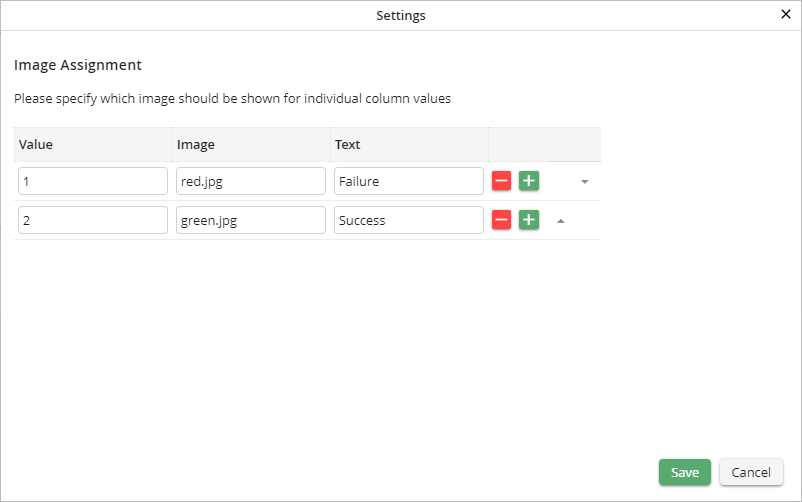
Image Assignment Settings
The Value field determines which value of your database field will be represented by which image given in the Image column.
Please note: The chosen images must be stored in the modules/jobselect/images folder of the JobSelect module.
Text entered into the Text field becomes context sensitive information that is shown when the user moves the mouse over the image.
If you want to assign a picture to individual values, click on the  symbol in the second last column. A pop-up window opens. General settings concerning the displaying of images in the result column can be made here.
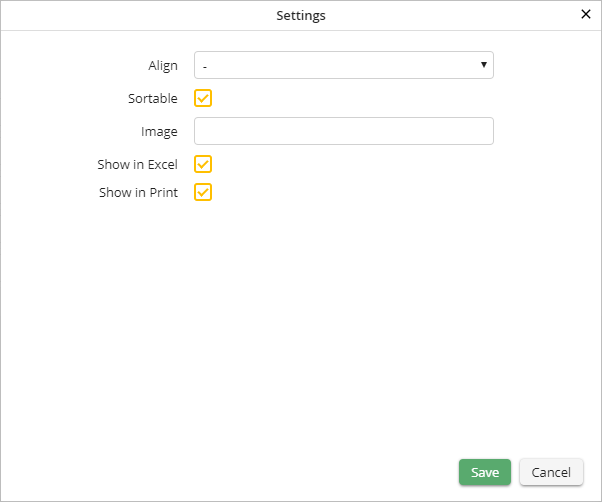
Image settings
The following settings can be changed:
Image settings |
Definition |
|---|---|
Align |
Choose if the image should appear to the •left, •right or •centered. |
Sortable |
Check the box to allow the user to sort the column. |
Image |
Choose the image to be displayed. |
Show in Excel |
Specify whether the column may be included in an Excel export. |
Show in Print |
Determine whether the column should be included when the Report is printed. |
Click Save to save your settings. The pop-up window will close automatically. You will see the Edit a JobSelect Report dialog window. Click Apply in the action bar to save your settings.
