You can integrate scripts in the overview. The user can execute these from the overview. So the user has e.g. the possibility to start processes from the overview or open a specific document.
Configuration

Result column of the type script
Script selection
By clicking on the pencil symbol at the end of the line a window is opened. Here you can configure the script properties:
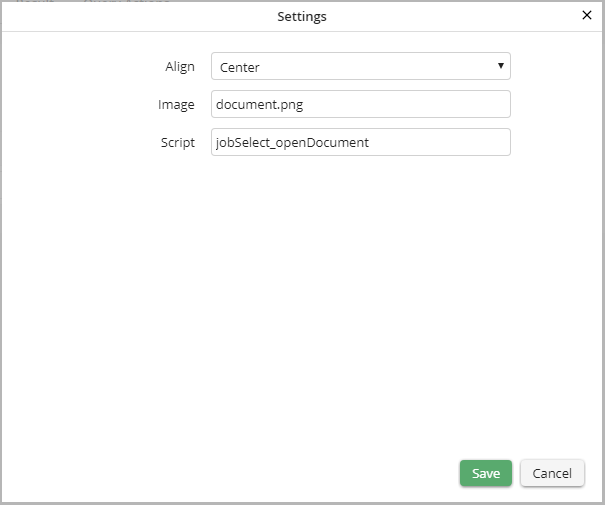
Script properties
In the field Image you determine which symbol shall be displayed. If you don't define an image, a default image  will be displayed. Under Alignment you can select whether the image shall be displayed on the left, the right or in the center. If you don't chose an option, the image is displayed on the left.
Please note: The image to be used has to be stored in the subdirectory images of the JobSelect module directory modules/jobselect.
Under Script you can store the name of the function to be performed. To be able to call the script or its function, it has to be stored in the directory modules/jobselect/js (for JavaScript) or modules/jobselect/vbs (for VB-Script). The script can contain several functions. Therefore, call the function through its name when you define the result column.
Passing script parameters
You can add additional parameters to the script. By clicking on the  symbol in the field Type, the following pop-up window is opened:
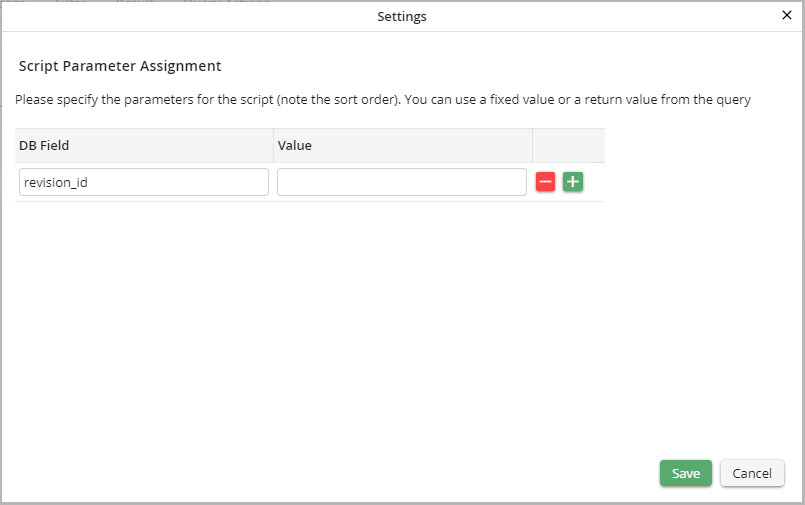
Script parameter assignment
For passing parameters to a script database fields or fixed values can be determined. Either specified the desired field in the DB Field or determine the value in the Value field.
Please note: The parameters are passed one by one in a fixed sequence determined here. The first line of the setting is passed as first parameter to the function, the second line as second parameter, etc.
By clicking on Save your settings are confirmed. The pop-up window will be closed and you see the Edit Overview mask again. Click on Apply to save your settings.
