You may pass predefined values to a process initiated by a file import task. The data, a fixed value, or a file name, for example, are passed to a process instance by storing them in the process table or one of the subtables fields beforehand. To do so, you have to assign the file name or fixed values to the table fields.
The assignments can be set in the Assignments tab of the Edit File Import Task mask. The following input mask appears.
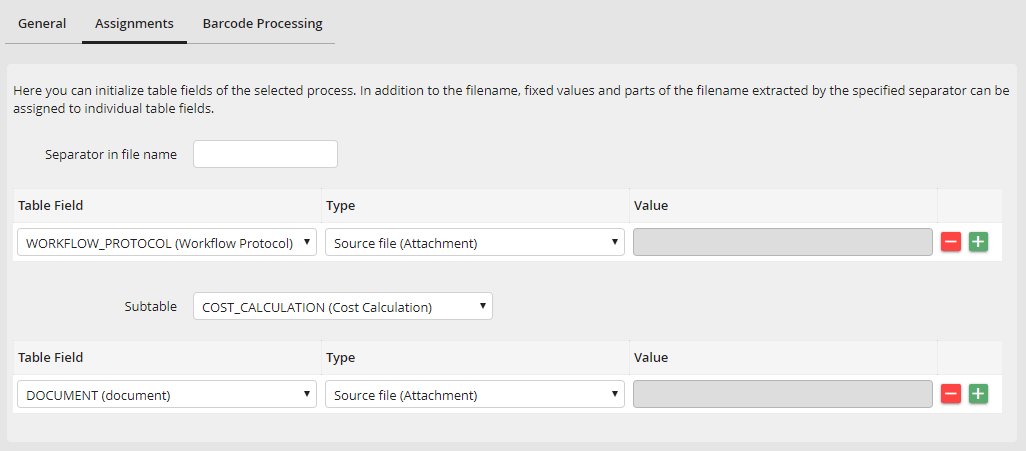
Assigning process fields
What is a file name split?
You may extract part of a file name by using a separator character. Do so by setting up a so-called file name split (see assignment types). The file name is split at the separation character, and you may store the various parts of the filename in one or more table fields.
Please note: All characters permitted in Windows for file names can be used as separators, except for the space character. Other character restrictions apply under Linux than in Windows.
Example 1: For the file name x_y_z.doc, you may store the x, the y, and the z in different table fields.
You specify which part of the file name is written to which field by specifying a sequence number in the Value field. Enter 1 to store the first part of the file name, 2 for the second part, etc. The extent and number of the parts are defined by the locations of the separation character in the filename.
Example 2: For the same file name, x_y_z.doc, x would be written to the first and y to the second field.
Enter the separation character in the field Separator in file name.
Choose the table field into which a value is to be written. The process you have chosen determines which process table and fields are available. Under Type specify the data type of the value to be stored in the field.
The lower part of the form allows you to transfer the data to a subtable. To do so, select a subtable in the sub table drop down menu, the assignments for the sub table columns can be done afterwards.
Please note: Working with subtables requires the JobTable add-on module.
You may choose among the following types.
Assignment types |
Definition |
|---|---|
Source File (Attachment) |
The file that started the instance will be passed to the field as an attachment. A field of the attachment type has to be selected. |
File name with extension |
The file name and the extension are written into the chosen field. |
File name without extension |
The file name but not the extension is written into the chosen field. |
Fixed value |
Enter a fixed value into the field Value. |
File name part |
The file name is split using the defined separation character. Also enter a sequence number into the field Value. |
File path |
The file's path name is written into the chosen field. |
File directory |
The directory name containing the file is written into the chosen field. |
Subdirectory |
The directory name containing the file is written into the chosen field. |
File extension |
The file extension will be written into the chosen field. |
Semaphore File |
The semaphore file will be passed to the field. A field of the attachment type has to be selected. |
Barcode (Barcode Processing) |
If barcode processing is active, the selected barcode will be written in the field. |
Number of pages in the document (Barcode Processing) |
The number of pages of a document separated using a barcode will be written in the field. |
The document separated by a barcode will be passed to the field. The field has to be of the attachment type. |
|
Page number of the start page (Barcode Processing) |
The page number of the first page of the original file of a document separated by a barcode will be written in the field. |
Page number of the end page (Barcode Processing) |
The page number of the last page of the original file of a document separated by a barcode will be written in the field. |
Several barcodes (Barcode Processing) |
If a page includes several barcodes, only the first one will be read. Additionally, the value 1 can be written in the selected field. For example, this can be used for decisions in the process. |
Enter a fixed value into the Value field when you have chosen one of the types Fixed value or File name Part.
Click on  to add more rows to the assignment list or click on
  to remove a row from the list.
Click Save to save your settings. You will be automatically taken back to the task overview.
