Add a new e-mail import task by clicking New in the action bar. If you want to edit an existing task click on the corresponding name. In both cases, you see the following dialog window.
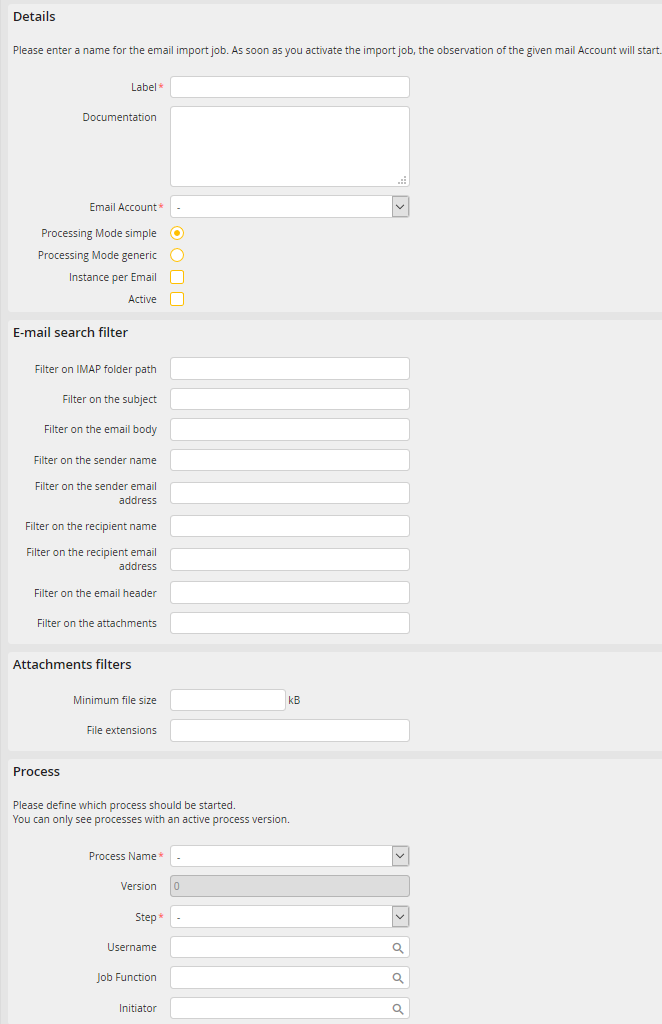
Creating an e-mail import task
What is the difference between the simple and generic processing mode?
When defining an e-mail import task, you can decide whether to use the simple or generic processing mode. The simple mode allows you to easily configure an import task that will start an instance for every incoming e-mail or every e-mail in there.
The generic processing mode is usually used for more complex e-mail inbox solutions where the structure of the received mails is unknown. It allows starting an instance and pass it the e-mail, every included e-mail, the attachments, all recipients and all header information.
You may configure the following settings.
General settings |
Definition |
|---|---|
Details |
|
Label |
Enter name for the task that will monitor an e-mail account. |
Documentation |
Enter an optional task description. |
e-mail account |
Choose the e-mail account to be monitored. |
Processing mode |
Choose between the simple and the generic processing mode. |
Instance per e-mail |
This checkbox is only available if you selected the simple processing mode. Select it, if you want to start a JobRouter instance for every included e-mail, else only one instance will be started. |
Active |
Check the box to monitor the chosen e-mail account. |
Search filter |
|
Filter on IMAP folder path |
Enter the path of the IMAP folder from which the e-mails are to be imported, e.g. INBOX/Customer1/Invoices. This setting is useful only if the option Monitor subfolders of inbox is selected in the inbox settings. |
Filter on subject |
Enter a subject to scan for. |
Filter on e-mail message body |
Enter body text to scan for. |
Filter on sender name |
Enter the sender name to use as filter. |
Filter on sender address |
Enter the sender e-mail address. |
Filter on recipient name |
Enter the recipient name. |
Filter on recipient e-mail address |
Enter the recipient e-mail address. |
Filter on e-mail headers |
Here user-defined e-mail headers can be entered. A header has to be defined in the following format: header_name:header_value. Multiple values can be separated by a semicolon, e.g. X-JR-TESTSYSTEM:NO;X-CUSTOMER:JobRouter AG |
Filter on the attachments |
Determine, which attachments the e-mail should contain. As placeholder * can be used, whereby the star is used for one or multiple characters, such as *.pdf or invoice201*_25*.doc*. Multiple values can be separated by a semicolon. |
Anhangsfilter |
Attachment filter |
Minimum file size |
Determine the file size, which is at least needed for the import of the file. |
File extensions |
Determine, which file extensions are valid for the import. Multiple values can be separated by a semicolon, e.g. pdf;tif |
Process |
|
Process name |
•Choose the process to be initiated •Only processes with an active version are available. |
Version |
The current version will be automatically set. |
Step |
Choose a process step to be initiated. |
Username |
•Specify a user for whom the first step of the process should be activated. •Enter the name directly or select a user using the •Enter the Job Function name directly or select it using the |
 symbol. Specify a user for whom the first step of the process should be activated.
Click Save to store your settings and be taken back to the e-mail import task overview.
