The responsibility for processes can be assigned to individual users and Job Functions. A process owner has access to the step and instance overviews and can monitor and direct steps and instances. A number of rights can be assigned to a process owner, which allows the process owner to take a variety of specific actions on steps and/or instances.
Clicking on manage processes in the navigation menu under Admin Tools will display an overview of all processes in JobRouter.
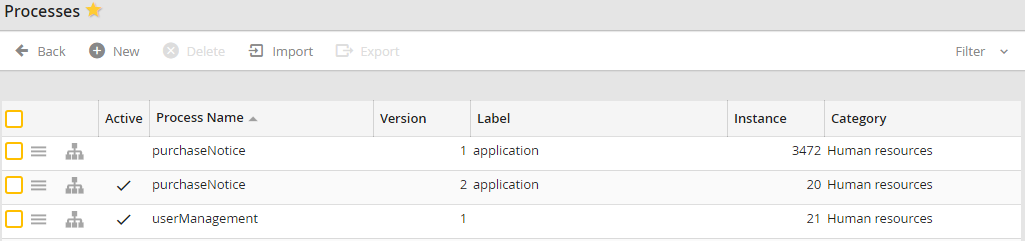
In the first column you can see a context menu icon  . Clicking on this icon opens the context menu for the corresponding process.
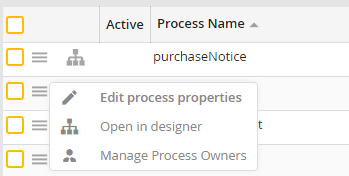
Managing processes: context menu
Select Manage Process Owners. This opens the Manage Process Owners page of the corresponding process. Here you can add or delete users or Job Functions in the corresponding tab.
Assigning a user to a process
You can see the already assigned users here, listed by username. Using the auto complete field allows you to add a user to the process and set different rights for them.
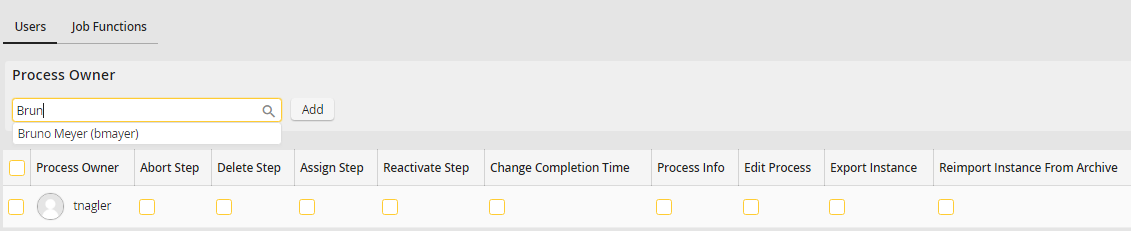
Managing process owners: Users
You can add users using a pop-up window by clicking on the icon  on the right of the auto complete field.
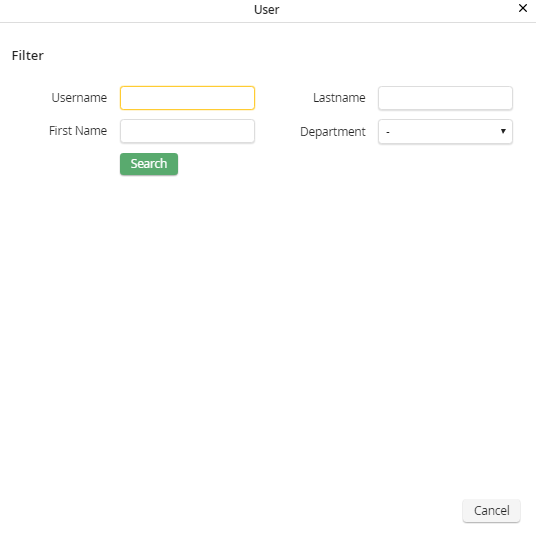
Search: Users
You can limit your search by entering a username, a last name or a first name. You can also filter by department.
The selection is made by clicking on one of the search results. Then the pop-up window closes and you can assign rights.
You can assign the following rights:
Rights |
Definition |
|---|---|
Abort step |
The process owner may abort steps via Steps overview. |
Delete step |
The process owner may delete steps via the steps overview. |
Assign step |
The process owner may assign steps via the steps overview. |
Reactivate step |
The process owner may reactivate steps via the steps overview. |
Change completion time |
The process owner may change the completion time for steps via the steps overview. |
Process info |
The process owner may edit the documentation for the steps in the step dialog himself, provided that the action Process info is activated in the step settings. |
Edit process |
The process owner may edit the process, even if process editing is not activated in the user settings. |
Export instance |
The process owner may export instances into an instance archive via the instance overview. For that a JobShift module license is necessary. |
Reimport instance from archive |
The process owner may reimport instances from an instance archive via the instance overview. For that a JobShift module license is necessary. |
Click Save to save your settings.
Assigning a Job Function to a process
Job Functions can be added the same way using an auto complete field. Here you can also use the icon on the right of the auto complete field to perform a search.
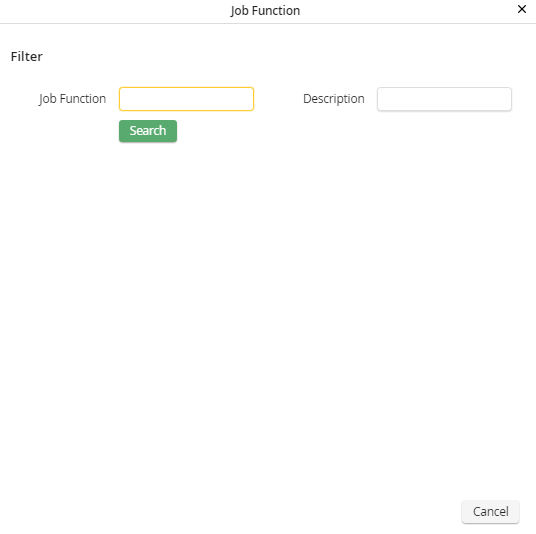
Search: Job Funciton
You can restrict your search here by entering a Job Function or search for a label. You can use the placeholder *. All Job Functions are listed by clicking the Search button without entering anything.
The selection is made by clicking on one of the search results. Then the pop-up window closes and you can assign rights.
Click Save to save your settings.
